Wordpress Integration Updated 3 years ago

Step 3: Customize WordPress Settings

Step 3: Configure the following settings under Account Settings and click Save.

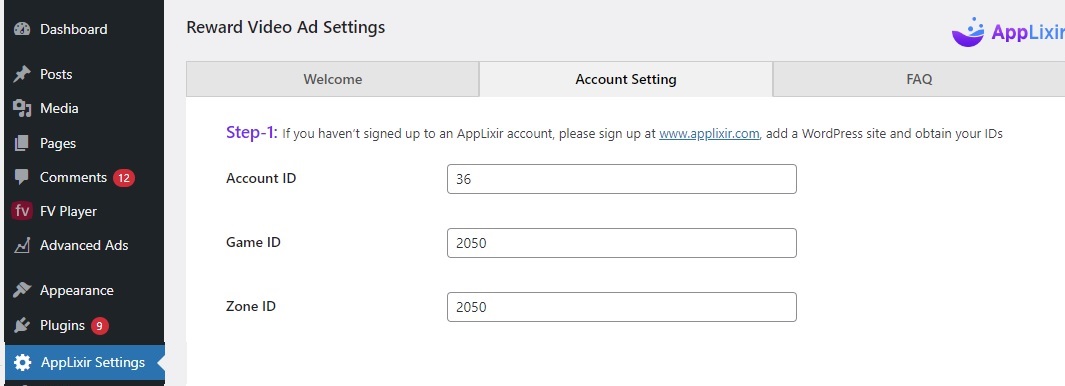
1.   After we approve your account, you can use your Account ID, Game ID and Zone ID, that you generated (see previous section). for Testing purposes, you can use 36, 2050 and 2050 for Account ID, Game ID and Zone ID.

WP2.jpg

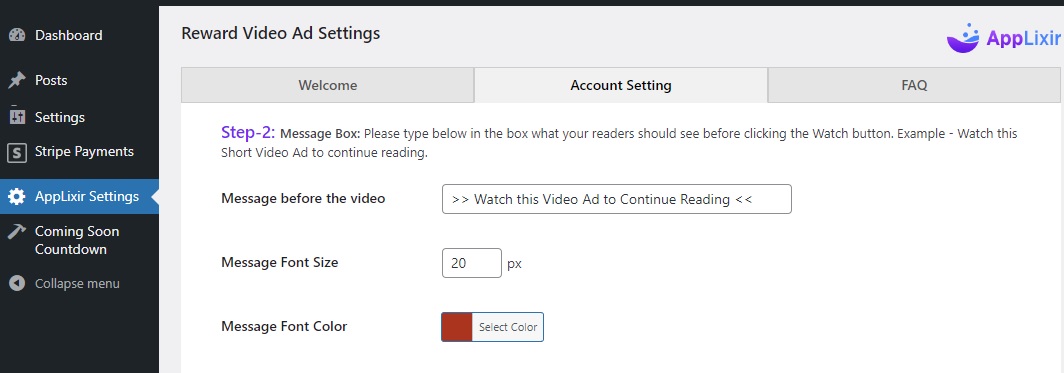
2.   Before the "watch the video" button, your reader needs to be appropriately communicated. (for example, "Please Watch This Ad to Contiune Reading") You can also change the font and color of the message.

WP3.jpg

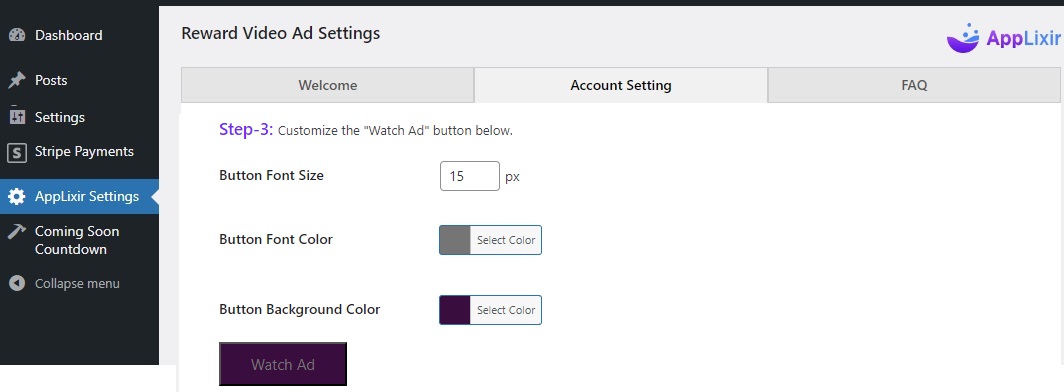
3.   The "Watch Ad" button can be customized to make it look similar to your site. 

WP4.jpg

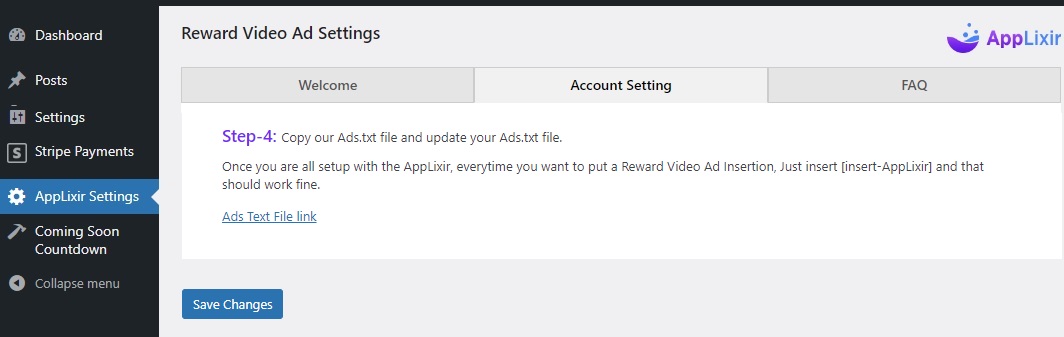
4.   For Ads to properly run on your site, you have to update your Ads.txt file. You can find our Ads.txt. file here

WP5.jpg

Next Step : >> How to Insert the Button

Was this article helpful?
Your feedback shapes what we write next.
Still need help?
Our team responds to publishers within 1 business day.
Contact support →