Step 2: Add Unity Package to your Project
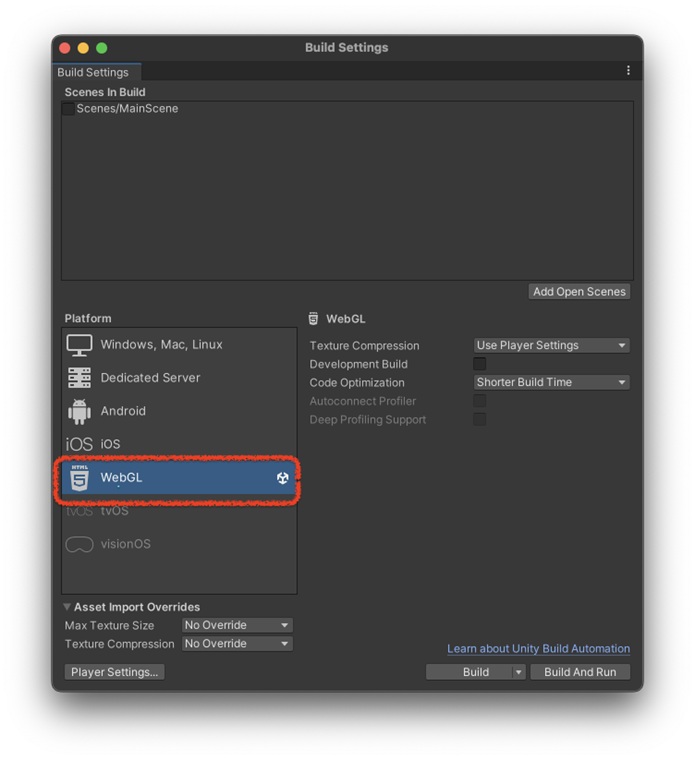
As stated above, this solution served ads for web projects. Therefore you need to establish a Unity project and set the target platform to be WebGL.
To add unity SDK to your project, download and add the SDK package to the projects using the menu “Assets -> Import package -> Custom Package”, then navigate to the downloaded .unitypackage file.
This will create an Applixir folder inside your project. Here is the Package to Download
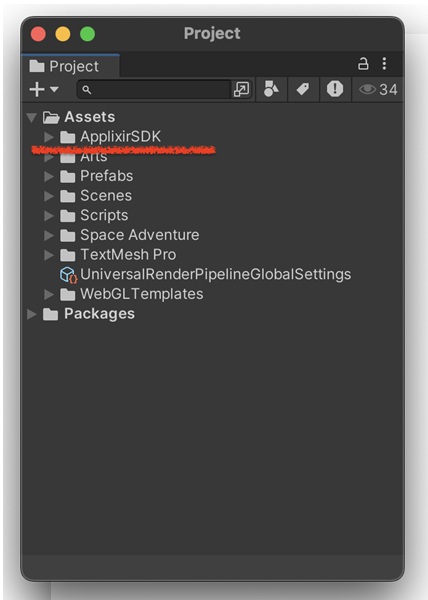
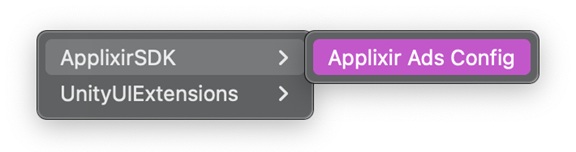
After adding the SDK, navigate to the asset menu “Tools -> ApplixirSDK -> Applixir Ads Config”.
You will see in the inspector tab the configuration file that the SDK uses. You need to fill in the data that you have on your Applixir site’s page:
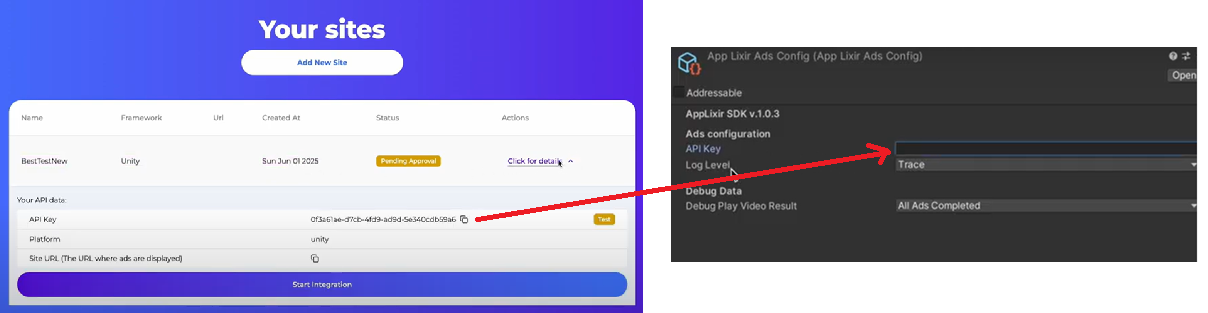
Debug Play video result - this is used only in the Editor. As can’t show ads inside the editor, however, Developers need to properly handle and test the flows - both successful and failing - this option will be used in the editor: whenever you call to play Video ads this value will be returned in the callback.
‼️****Remember to set the Log Level to None for the production builds